> ## Documentation Index
> Fetch the complete documentation index at: https://docs.trykura.com/llms.txt
> Use this file to discover all available pages before exploring further.
# Output
> Formatting and returning agent results
# Output
Outputs are the results and data produced by your agent after completing execution.
By default, the output of an agent includes all data extracted in data
extraction blocks. You can customize this behavior as described below.
Configuring output is optional and not needed, especially if you're using the agent to perform actions instead of extracting data.
You can configure the output format in the Output tab of the builder interface.
 You have the ability to output any or all of the data extracted by your agent via a dropdown menu which contains all [Inputs](/agent-data/inputs) and [Variables](/agent-data/variables).
## Example
Let's say you have an agent that extracts both the name and the price of a product from a webpage into separate variables titled "product\_name" and "product\_price".
You can configure the output of your agent to output either or both of these variables.
You have the ability to output any or all of the data extracted by your agent via a dropdown menu which contains all [Inputs](/agent-data/inputs) and [Variables](/agent-data/variables).
## Example
Let's say you have an agent that extracts both the name and the price of a product from a webpage into separate variables titled "product\_name" and "product\_price".
You can configure the output of your agent to output either or both of these variables.
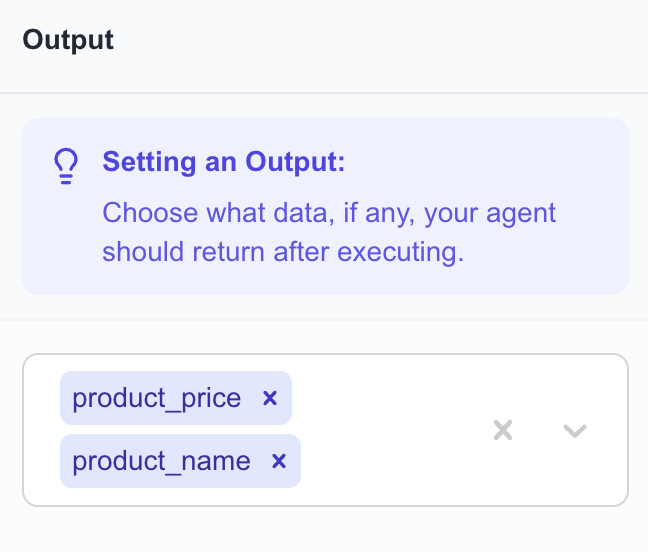 When you run your agent, its output will now be a JSON object with the following format:
```json theme={null}
{
"product_name": PRODUCT_NAME,
"product_price": PRODUCT_PRICE
}
```
where the `PRODUCT_NAME` and `PRODUCT_PRICE` are the values extracted by your agent.
When you run your agent, its output will now be a JSON object with the following format:
```json theme={null}
{
"product_name": PRODUCT_NAME,
"product_price": PRODUCT_PRICE
}
```
where the `PRODUCT_NAME` and `PRODUCT_PRICE` are the values extracted by your agent.